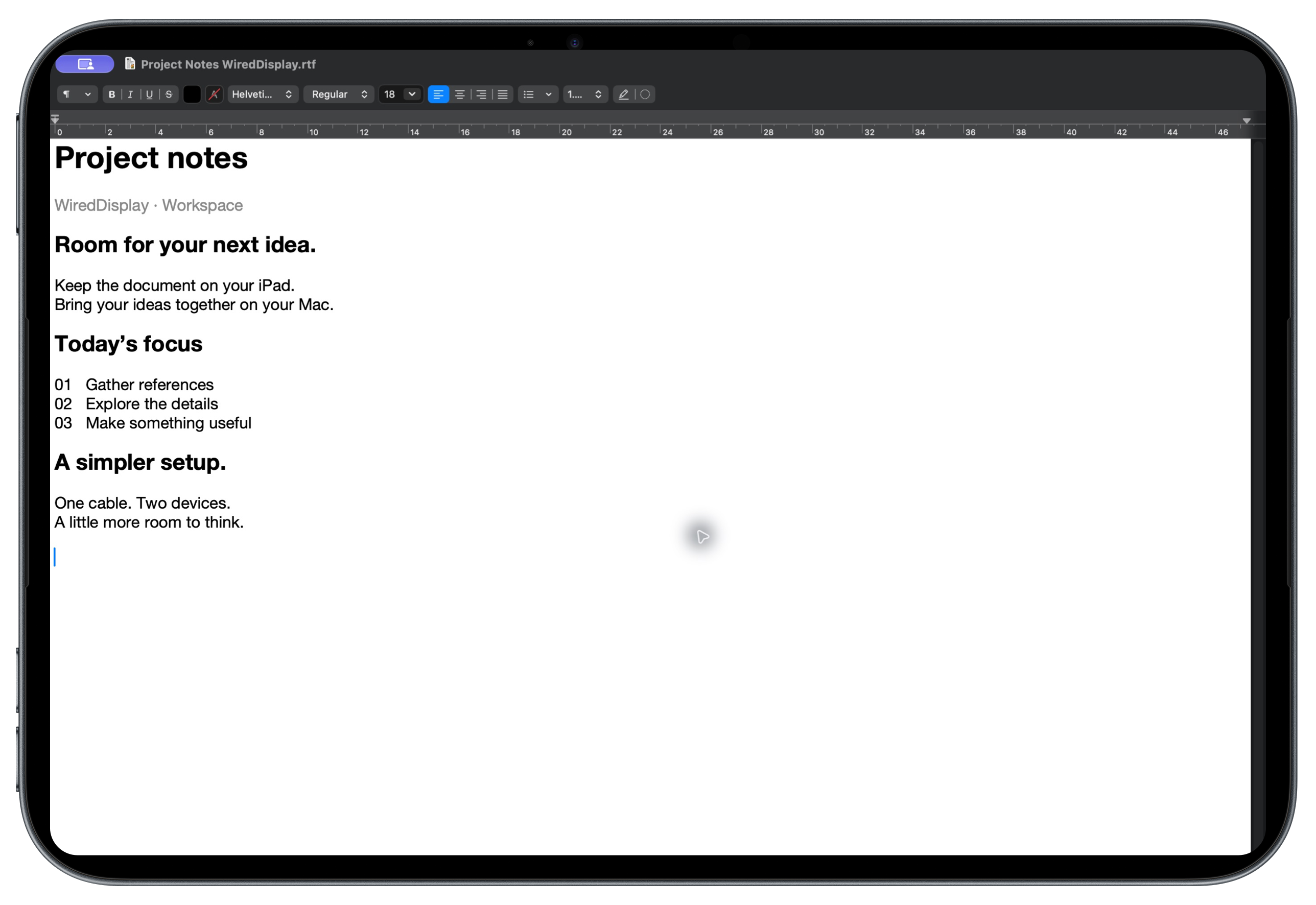
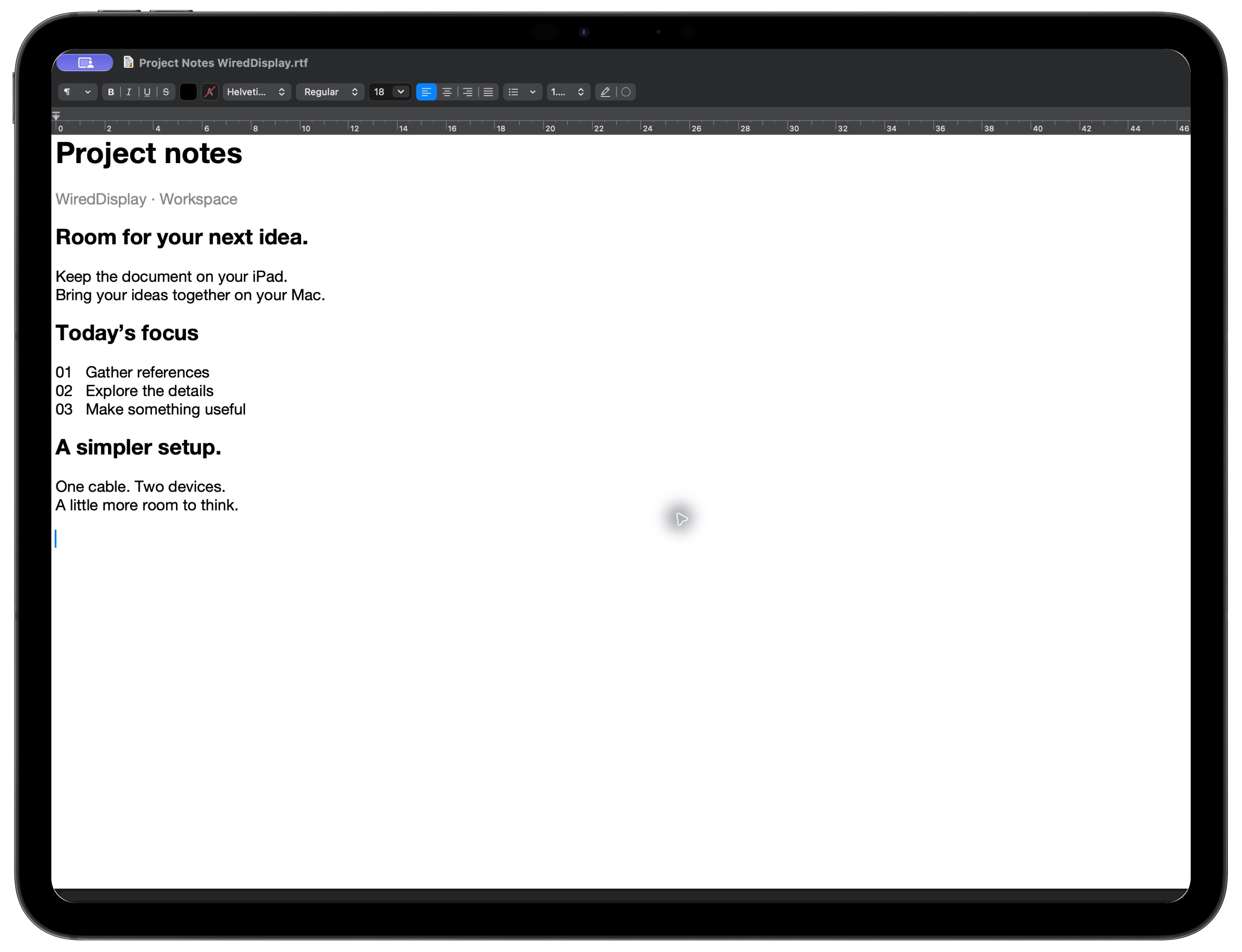
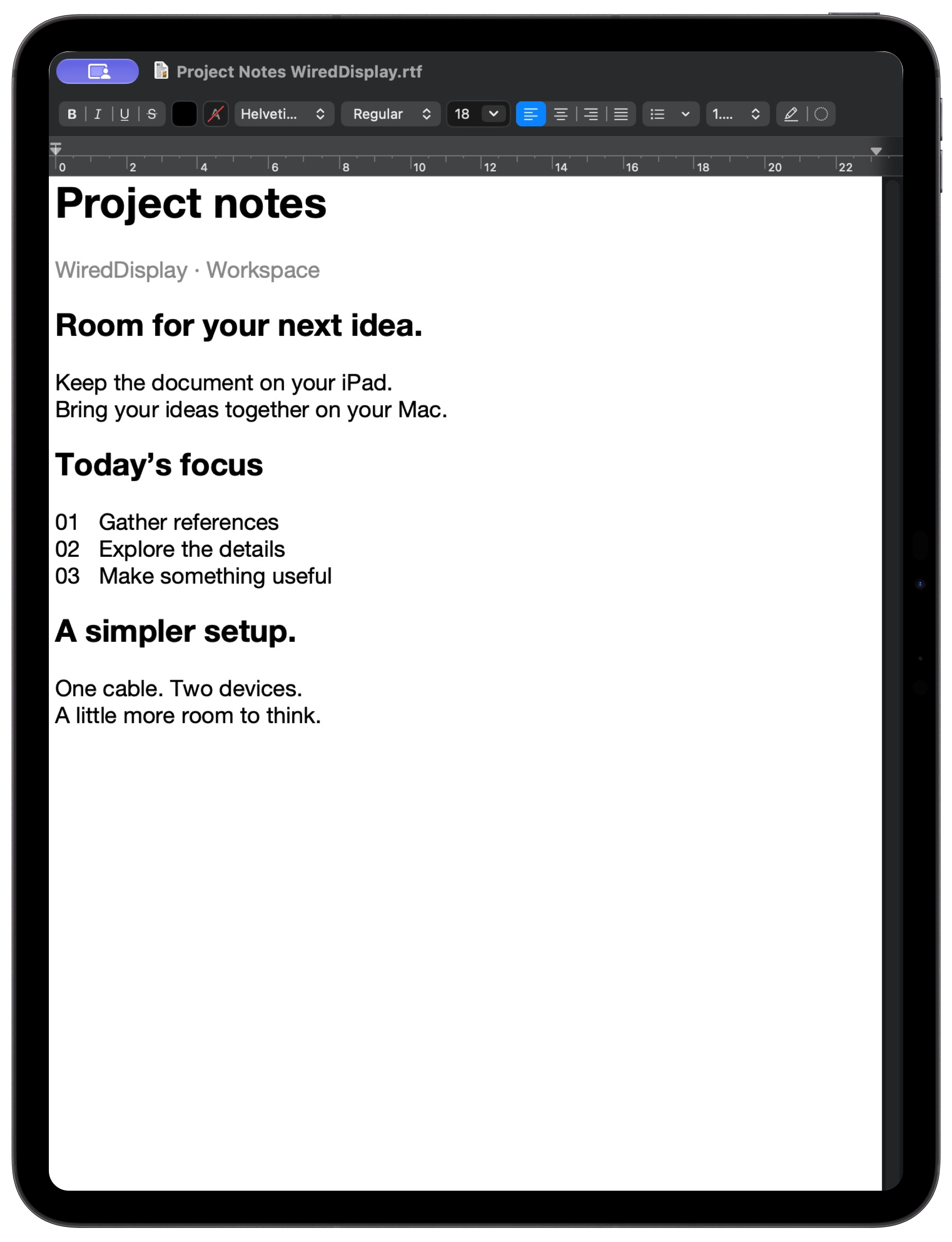
One cable. More possibilities.
Make your iPad part of your Mac workspace.
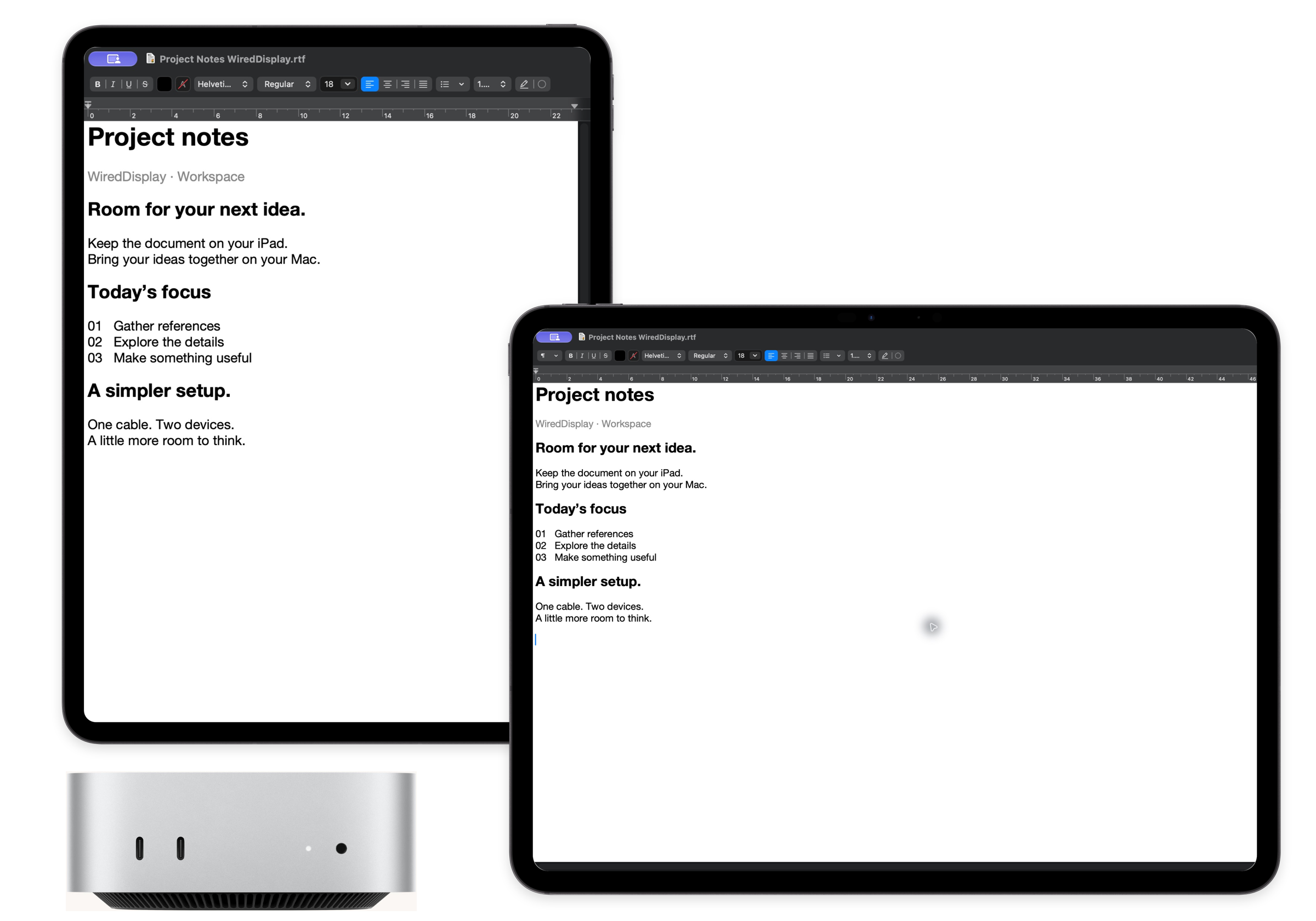
An extra display. A speaker for your Mac. A microphone for your voice. All connected by one USB cable.
Mockups use actual macOS application screenshots with a sample document. Device compositions are illustrative. Development panels may differ from the public release.
Make your iPad part of your Mac workspace.
Your voice, through its microphone.


Room for everything you do.
Just open your Mac menu bar.
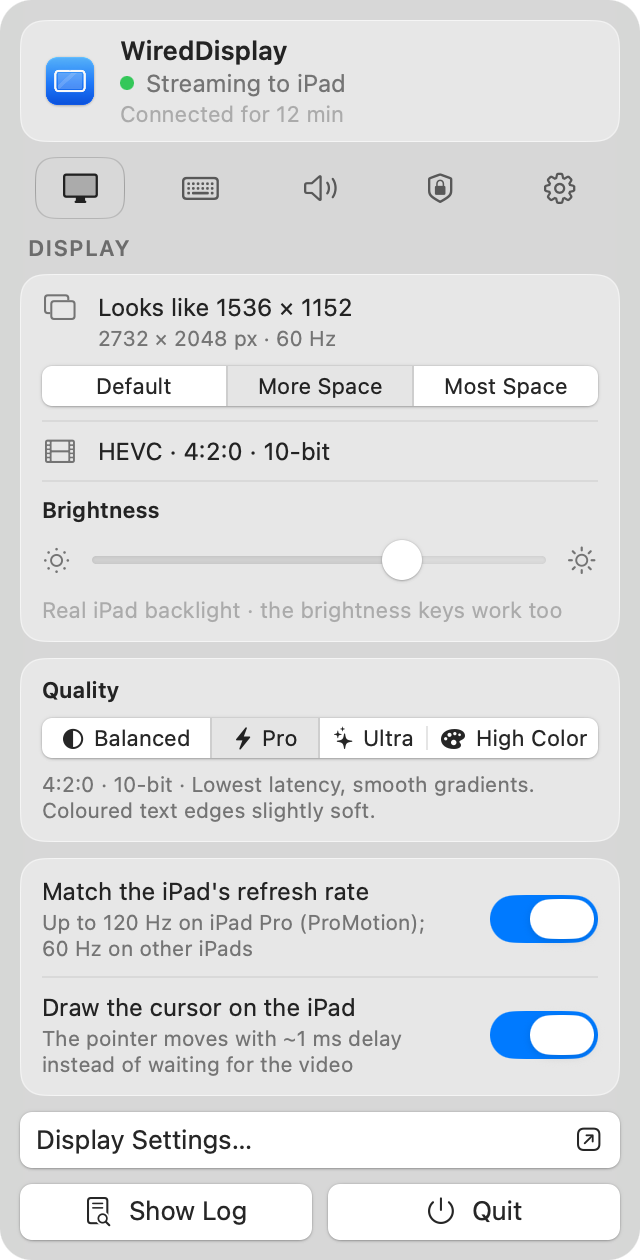
Use your iPad’s built-in speakers and microphone with your Mac. One device for seeing your work, listening, and speaking.
Play it on your Mac. Hear it on your iPad.
Speak to your iPad. Bring your voice to your Mac.
Requires the WiredDisplay audio driver on your Mac, included in the DMG. Select iPad Speaker as output and iPad Microphone as input in sound settings or your meeting app.
Video travels over USB at a resolution matched to your iPad panel.
Mac audio plays through the iPad’s built-in speakers.
The iPad microphone becomes an input for apps on your Mac.
iPad, iPad mini, iPad Air, or iPad Pro. The desktop size follows the resolution and pixel density of the model you use.
iPadOS 17+
iPadOS 17+
iPadOS 17+
iPadOS 17+
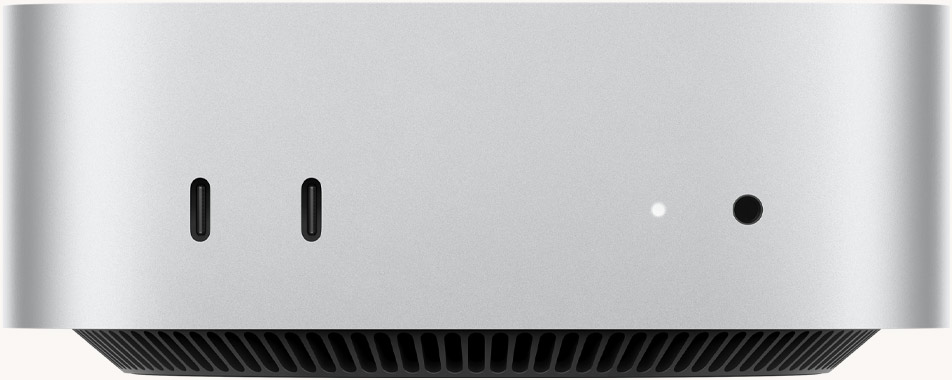
Use iPadOS 17 or later, a Mac host on macOS 14 or later, and a USB cable that supports data. Match the cable to your iPad’s port.
Lightning models require a suitable data cable. A physical Lightning connection has not yet been verified.
Actual refresh rate follows device capabilities and settings. Physical 60 Hz testing used a 13-inch iPad Air. ProMotion 120 Hz still needs physical validation.
Choose picture quality in the Mac panel. 4:4:4 modes preserve colour detail around text edges. Native @2x provides the most direct pixel mapping.
Latest development preview. The v0.4.2 release panel may look different.
Download both apps from the same GitHub release, then follow the setup guide.
macOS 14+
Download for MaciPadOS 17+
Download iPad appWith a free Apple ID, sideloaded apps need refreshing every 7 days. AltStore can refresh them while AltServer is available.
Download the Mac host and the iPad app. Install the iPad app by sideloading with AltStore.
Open WiredDisplay on your iPad. On your first connection, match the pairing code on both devices.
Position your iPad display in macOS Displays settings. Move a window onto your iPad and get started.
WiredDisplay video, audio, and input travel over USB. Use a USB-C cable that supports data transfer.
This release distributes the iPad app as an IPA on GitHub for sideloading. The Mac host is distributed as a DMG.
Choose Native @2x to map the desktop raster directly to the panel pixels. More Space and Most Space provide extra room by downscaling the raster. The Native size varies by iPad model.
The iPad keyboard and trackpad are supported through the input option. Enable Allow Input from iPad in the host and grant Accessibility permission on your Mac.
WiredDisplay sends compressed video to the iPad panel. Results depend on the desktop mode, video format, and iPad model. Picture and latency parity with Studio Display have not been established through a direct comparison.
Use iPadOS 17 or later, a Mac host on macOS 14 or later, and a USB cable that supports data. Match the cable to your iPad’s port. Lightning models require a suitable data cable. A physical Lightning connection has not yet been verified. Actual refresh rate follows device capabilities and settings. Physical 60 Hz testing used a 13-inch iPad Air. ProMotion 120 Hz still needs physical validation.
Get started with WiredDisplay v0.4.2 for Mac and iPad.